
How to Enroll in Passkey Authentication
A plain-English walkthrough for setting up a passkey on your Microsoft 365 business account — a faster, phishing-proof way to sign in. No code to type, nothing to remember: you simply approve with your phone’s fingerprint, face, or PIN.
What a passkey is, in plain English
You didn’t start your business to become a security expert. Here’s the whole idea in a minute, so the steps that follow make sense.
A passkey is a digital key that lives safely on your phone (or another device). Instead of typing a password or a texted code, you prove it’s really you by unlocking your phone the way you already do — a fingerprint, a face scan, or your PIN. That’s it. There’s nothing to memorize, nothing to type, and nothing an attacker can trick out of you. It’s widely considered the most secure way to sign in to a Microsoft 365 account, which is why Microsoft is steadily moving everyone toward it.
Before you start
- Your smartphone (iPhone or Android)
- Your work email address & password
- A screen lock on your phone (fingerprint, face, or PIN)
- About five quiet minutes
Think of it like a key, not a password
A password is a secret you have to remember and re-type — which means it can be phished, guessed, or leaked. A passkey is more like a physical key kept in your pocket: it never leaves your device, and it only works on the genuine Microsoft sign-in page.
Not sure this applies to you? This guide covers the Microsoft account you use for work — the one behind your business email, Outlook, Teams, and Office. If your company runs on Google Workspace instead, jump to the Google section. Still unsure? Give us a call.
Passwords & codes vs. a passkey
However you sign in today, a passkey is simpler for you and dramatically harder for an attacker. Here’s the side-by-side.
Passwords & typed codes
- ×Passwords can be guessed, reused across sites, or leaked in a breach.
- ×A code you type can be intercepted or entered into a fake login page.
- ×It’s one more thing to remember, wait for, and type in every time.
- ×If an attacker tricks you once, they’re in.
A passkey on your phone
- ✓You approve sign-in with your fingerprint, face, or PIN.
- ✓Nothing to type, so there’s no code for anyone to steal.
- ✓It only works on the real Microsoft site — phishing pages fail.
- ✓Faster every single day, on every device you set up.
design
Why a passkey can’t be phished. Your passkey never leaves your phone, and it only works on the genuine Microsoft sign-in page. There’s no code to intercept and nothing to type into a look-alike site, so the tricks scammers rely on simply don’t work. Even if someone knows your password, they still can’t get in without your device and your fingerprint, face, or PIN.
A quick readiness check
Run through these once and the setup itself takes about five minutes. If any box is a “no,” the fix is simple — or just give us a call.
- A supported phoneiPhone on iOS 16 or newer, or Android 9 or newer. Most phones from the last several years qualify.
- A screen lock turned onFingerprint, face unlock, or a PIN. This is what keeps your passkey protected — it’s required.
- Your current sign-in handyYou’ll verify once with your existing method (your password, an app prompt, or a code) to get started.
- Five uninterrupted minutesDo it at your desk or anywhere you can use your phone. You only set it up once per device.
Set it up on your phone
This is the simplest way and works for most people — you’ll only need your phone. Prefer to start from a computer? See the computer method below.
Install the Microsoft Authenticator app
On your phone, open the App Store (iPhone) or Google Play (Android), search for Microsoft Authenticator, and install it. It’s free.
Add your work account
Open the app. If your work account isn’t already listed, tap the + button, choose the work account option, and sign in with your work email and password when asked.
Confirm it’s really you
You may be asked to verify your identity once using your current method — for example, approve a prompt, enter a code, or use your password. This one-time check simply confirms it’s really you before the passkey is created.
Tap “Create a passkey”
In the app, tap your account, then tap Create a passkey. If your phone asks you to set up a screen lock (fingerprint, face, or PIN) first, follow the prompt to add one — it’s required, and it’s what keeps your passkey protected.
Turn on Authenticator as your passkey app
The app will point you to a quick phone setting. Switch it on so your phone knows to offer Authenticator whenever a passkey is needed:
Finish up
Return to the Authenticator app and tap Done. You’ll now see Passkey listed on your account. Tap Done once more, and you’re set.
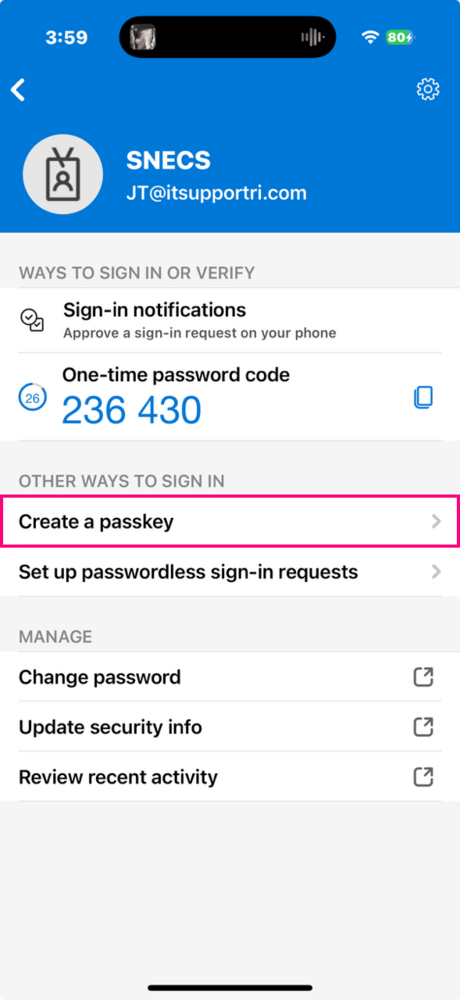

That’s it — you’re done! Next time you sign in to Microsoft 365, just approve it with your fingerprint, face, or PIN. Nothing to type.
Prefer to start on your computer?
You’ll still finish on your phone, but you can kick things off from a web browser — handy when you’re already at your desk.
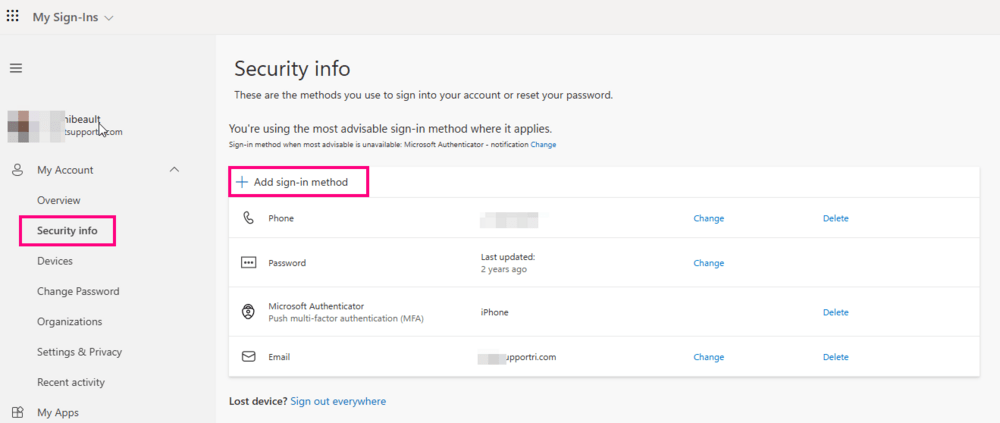
Go to your security page
On a computer, open a web browser and go to aka.ms/mysecurityinfo. Sign in with your work email and password.
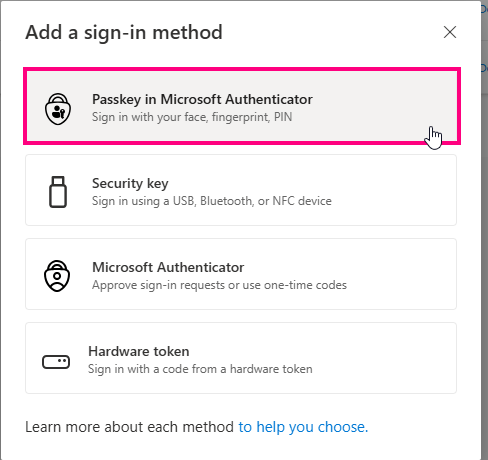
Add a new sign-in method
Click + Add sign-in method, then choose Passkey in Microsoft Authenticator.
Follow the on-screen guide
The website walks you through it and asks you to open the Authenticator app on your phone to create the passkey there — the same phone steps from the section above. Don’t have the app yet? It’ll help you install it.
Finish on your computer
Once the app confirms the passkey, return to your computer, click Next, then Done. Your new passkey will appear in the list of sign-in methods.
One requirement for computers: Signing in on a workstation with the passkey stored in Microsoft Authenticator uses a quick Bluetooth handshake between your phone and the computer to confirm they’re close together — so the computer needs Bluetooth turned on. (This isn’t required if the passkey is saved on the computer itself or you use a physical security key.)
Using a hardware security key?
If your team uses a physical FIDO2 key (like a YubiKey), choose Passkey at step 2 instead, then insert or tap the key and set its PIN when prompted. Everything else works the same.
Give it a quick test
Sign out and back in once to confirm your new passkey works — choose the passkey option and approve with your fingerprint, face, or PIN. Any trouble, we’re one call away.
Runs on Google instead? Do this.
Passkeys work on Google Workspace too — same idea, same security benefits. Here’s the short version.
Open your Google security settings
On a computer, go to myaccount.google.com → Security. Under “How you sign in to Google,” open 2-Step Verification (turn it on if it isn’t already).
Best option — add a passkey
Open Passkeys and security keys → Create a passkey, then confirm with your fingerprint, face, or device PIN.
Or — use an authenticator app
Find Authenticator → Set up authenticator → scan the QR code with Google or Microsoft Authenticator → enter the 6-digit code.
Give it a quick test
Sign out and back in once to confirm your new passkey works. That’s all there is to it.
Two quick tips for a smooth switch
Set it up on two devices
We recommend enrolling a passkey on more than one device — say, your phone and your laptop. If you ever lose one, you can still sign in with the other, with no risk of getting locked out. We’re happy to help you add a second device.
You’ll still have your password
A passkey is an additional, phishing-proof way to sign in — it doesn’t erase your password. Microsoft still accepts your password alongside your new passkey whenever you need it, so nothing gets locked away.
Rather we just handle it?
We can enable passkeys across your whole organization, walk every employee through enrollment, and make sure no one gets stuck — so your entire team is on fast, phishing-proof sign-in. No question is too small.
Click here for a shorter PDF version! →Your questions, answered
The things business owners ask us most about passkeys — in short, straight answers.
Why should I set up a passkey?
It’s the fastest and most secure way to sign in to Microsoft 365. There’s no code to type and nothing to remember, and it can’t be phished or stolen the way a password or typed code can. Once it’s set up, signing in is as quick as unlocking your phone.
What is a passkey, exactly?
A passkey is a secure digital key stored on your device and protected by your screen lock. When you sign in, your device proves it holds the key and that it’s really you (via your fingerprint, face, or PIN) — without ever sending a password or code that could be intercepted. It’s built on an industry standard used by Microsoft, Google, Apple, and many others.
Is a passkey safe? What if I lose my phone?
Very — a passkey can’t be phished or intercepted, and it never leaves your device. If you get a new phone, just set up the Authenticator app again on the new device and create a fresh passkey. We can help you remove the old one. This is also why we recommend enrolling a second device, so you’re never locked out.
The app is asking me to set a screen lock — is that necessary?
Yes, and it’s a good thing. Your screen lock (a fingerprint, face unlock, or PIN) is what protects your passkey, so a lost or borrowed phone can’t be used to sign in as you. Add one when prompted, then continue where you left off.
I don’t see “Create a passkey.” What now?
Your account may need a setting switched on from our side first. Give us a quick call and we’ll enable it while you’re on the line, then you can pick right back up.
What makes a passkey more secure than a password?
It never leaves your device, and it only works on the genuine Microsoft sign-in page. So there’s no code for anyone to intercept, and fake “look-alike” phishing pages simply don’t work against it. Even if someone already knows your password, they can’t sign in without your physical device and your fingerprint, face, or PIN.
Do I still need my password?
Keep it. A passkey is an additional way to sign in, not a replacement for your whole account. Microsoft still accepts your password alongside your new passkey, so nothing is lost — you simply have a faster, safer option for everyday sign-ins.
Can I set it up on more than one device?
Absolutely, and we recommend it. Enrolling a passkey on both your phone and your computer means that if you ever lose one, you can still sign in with the other. Each device gets its own passkey using the same steps.
Why does my computer need Bluetooth?
When you sign in on a computer using the passkey stored on your phone, the two devices do a brief Bluetooth “handshake” to confirm they’re physically near each other. That proximity check is part of what makes the sign-in secure, so the computer needs Bluetooth turned on. It isn’t needed if the passkey is saved on the computer itself or you use a physical security key.
Can you just set this up for me, or for my whole team?
Of course — that’s what we’re here for. Reach out and we’ll take care of it for you, or roll it out across your organization and guide every employee through enrollment. Call 401-522-5200 or submit a ticket.
This guide is a free resource from IT Support RI — locally owned and operated in North Smithfield, Rhode Island, serving small businesses across RI, MA & CT since 2002.